


MetaNarrativeAudio Plugin
MetaNarrativeAudio is a professional narrative audio system for Unreal Engine 5.7 built around a DataTable-first workflow.
It helps you manage and play:
- Voice-over lines
- Radio chatter
- Ambient narrative playback
- Triggered narrative events
- Subtitle UI (UMG)
- Zone-based narrative switching
- Profile-based audio setups
Core Highlights
- 100% DataTable-driven (CSV/Excel friendly)
- Zone-aware narrative context
- Ambient auto-play system
- Trigger and sequence trigger actors
- UMG subtitle interface
- Priority interruption support
- Profile switching during gameplay
Contents Included (Sample Content)
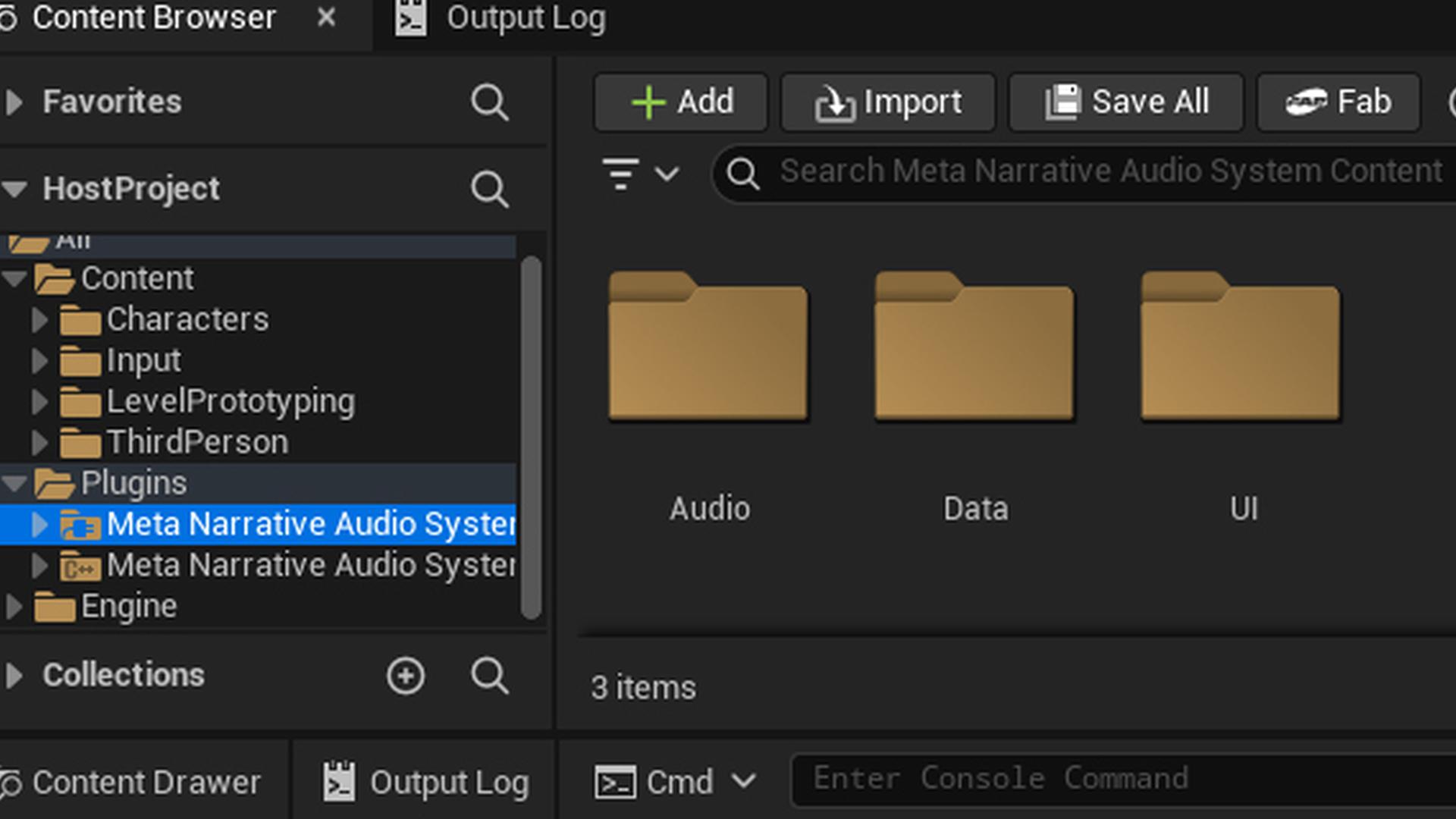
The sample plugin content is organized into folders such as:
- Audio
- Data
- UI
This structure makes it easy to inspect and reuse examples.
Installation
- Copy the plugin folder into your project:
YourProject/Plugins/MetaNarrativeAudio/ - Regenerate project files (if needed).
- Compile your project.
- Open Unreal Editor.
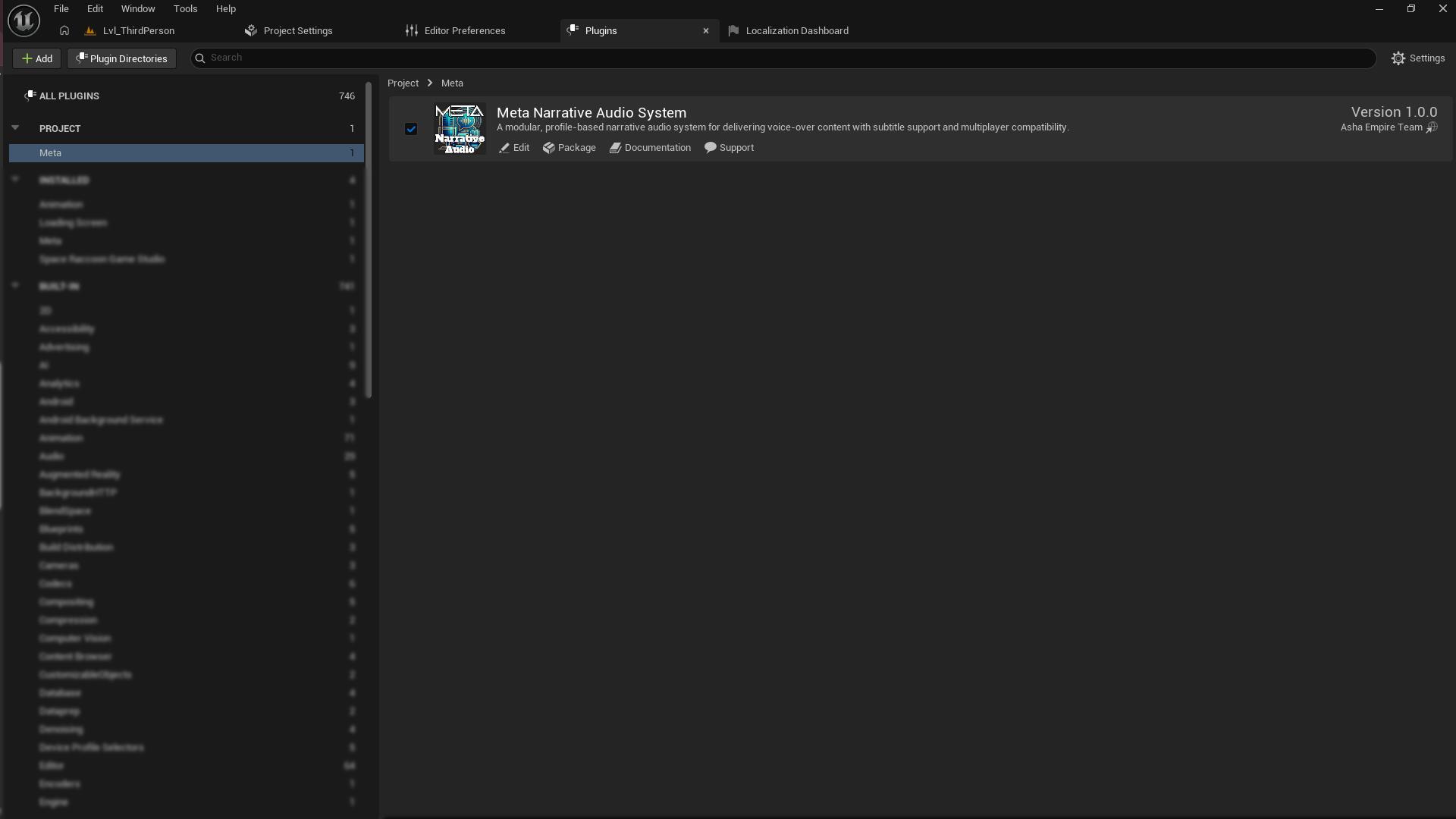
- Enable the plugin from:
Edit → Plugins → Search "Meta Narrative Audio System"
Quick Start Workflow
The recommended setup order is:
- Create a DataTable
- Create a Profile (Data Asset)
- Set Active Profile in Level Blueprint
- Create and register subtitle widget
- Use Trigger actors or call subsystem functions
- Test in PIE
1) Create a Narrative DataTable
Create a DataTable using the plugin row struct:
- Content Browser → Right Click → Miscellaneous → Data Table
- Row Structure:
MetaNarrativeDataTableRow
Example DataTable
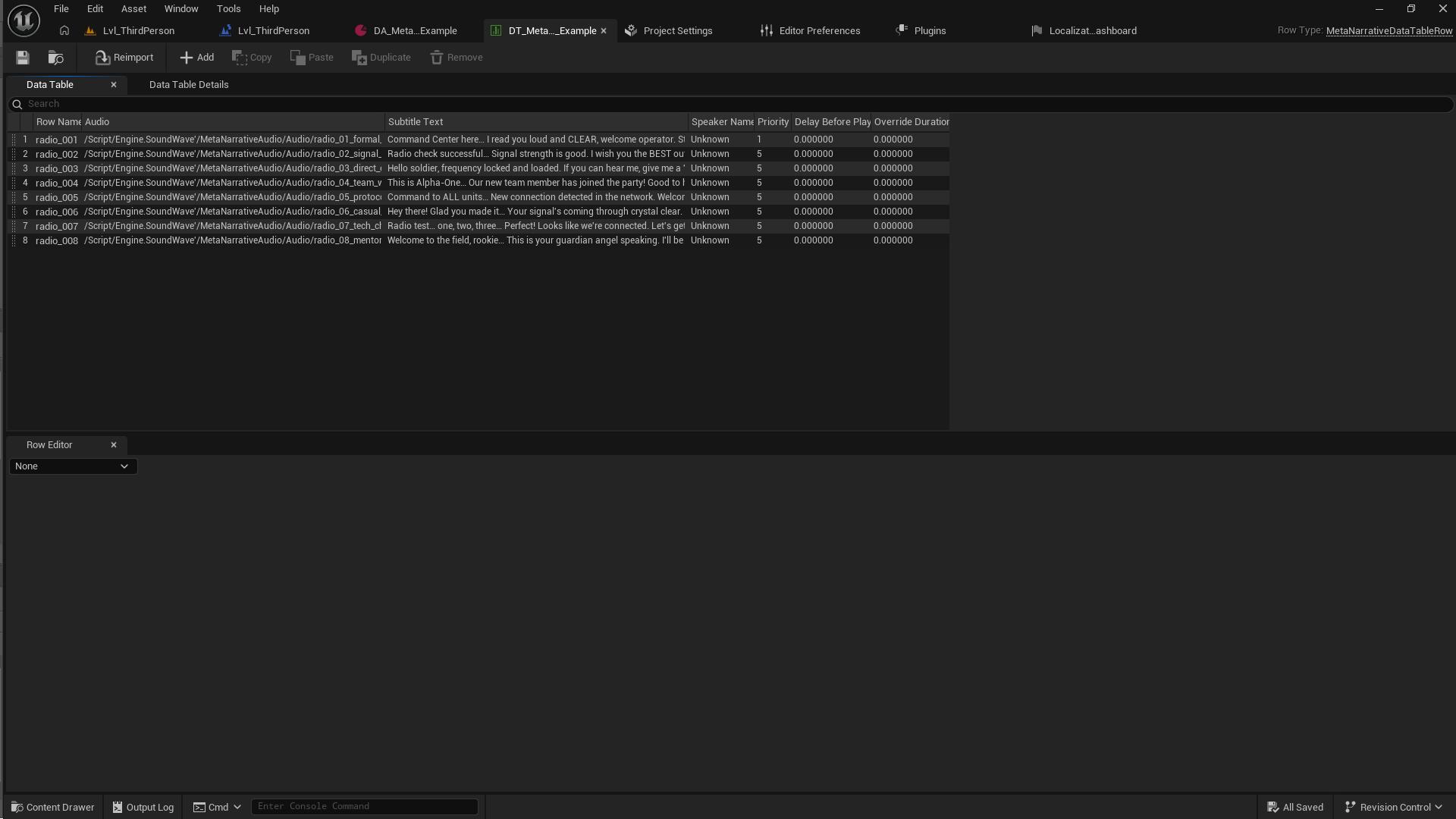
Typical Row Fields
| Field | Description |
|---|---|
| Row Name | The Line ID used to play this narrative |
| Audio | Sound Wave / Sound Cue asset |
| Subtitle Text | Subtitle shown on screen |
| Speaker Name | Who is speaking |
| Priority | Interruption priority (higher can interrupt lower) |
| Delay Before Play | Delay before playback starts |
| Override Duration | Optional manual duration override |
Example Line IDs
Use clear IDs like:
- radio_001
- radio_008
- checkpoint_intro
- boss_intro_01
2) Create a MetaNarrative Profile (Data Asset)
Create a Data Asset using:
- Miscellaneous → Data Asset
- Select
MetaNarrativeProfile
Example Profile Asset
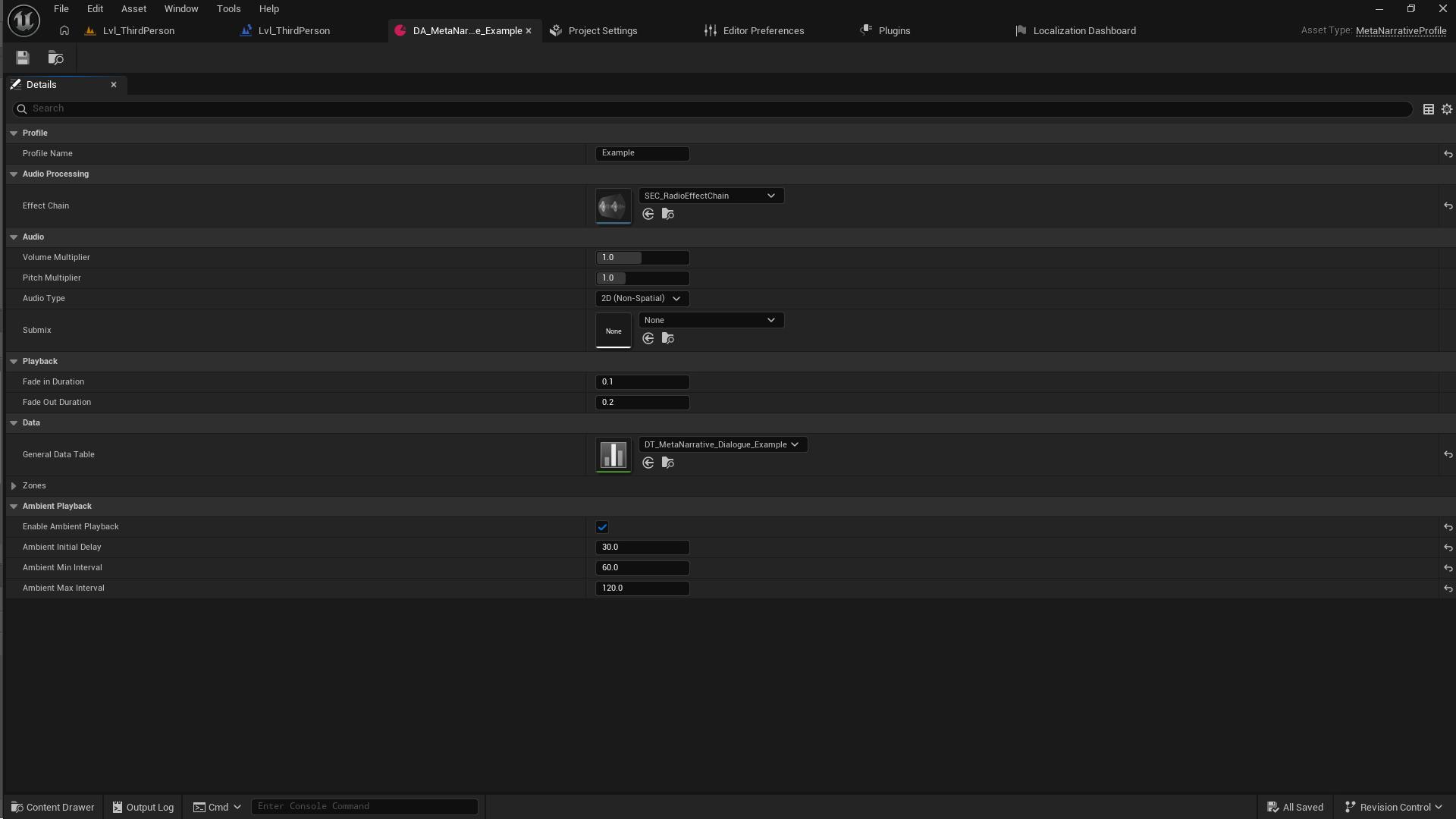
Important Profile Settings
Profile
- Profile Name
A readable profile identifier (example:Example)
Audio Processing
- Effect Chain
Optional effect chain (for radio style, distortion, etc.)
Audio
- Volume Multiplier
- Pitch Multiplier
- Audio Type (2D / non-spatial, etc.)
- Submix (optional)
Playback
- Fade In Duration
- Fade Out Duration
Data
- General Data Table
Main DataTable used when the player is not in a zone-specific override.
Ambient Playback (Optional)
- Enable Ambient Playback
- Ambient Initial Delay
- Ambient Min Interval
- Ambient Max Interval
Ambient playback allows the system to automatically play random narratives from the active DataTable without manual Blueprint calls.
3) Set the Active Profile in the Level Blueprint
At level start, assign the profile to the player through the Meta Narrative Audio Subsystem.
Example Level Blueprint Setup
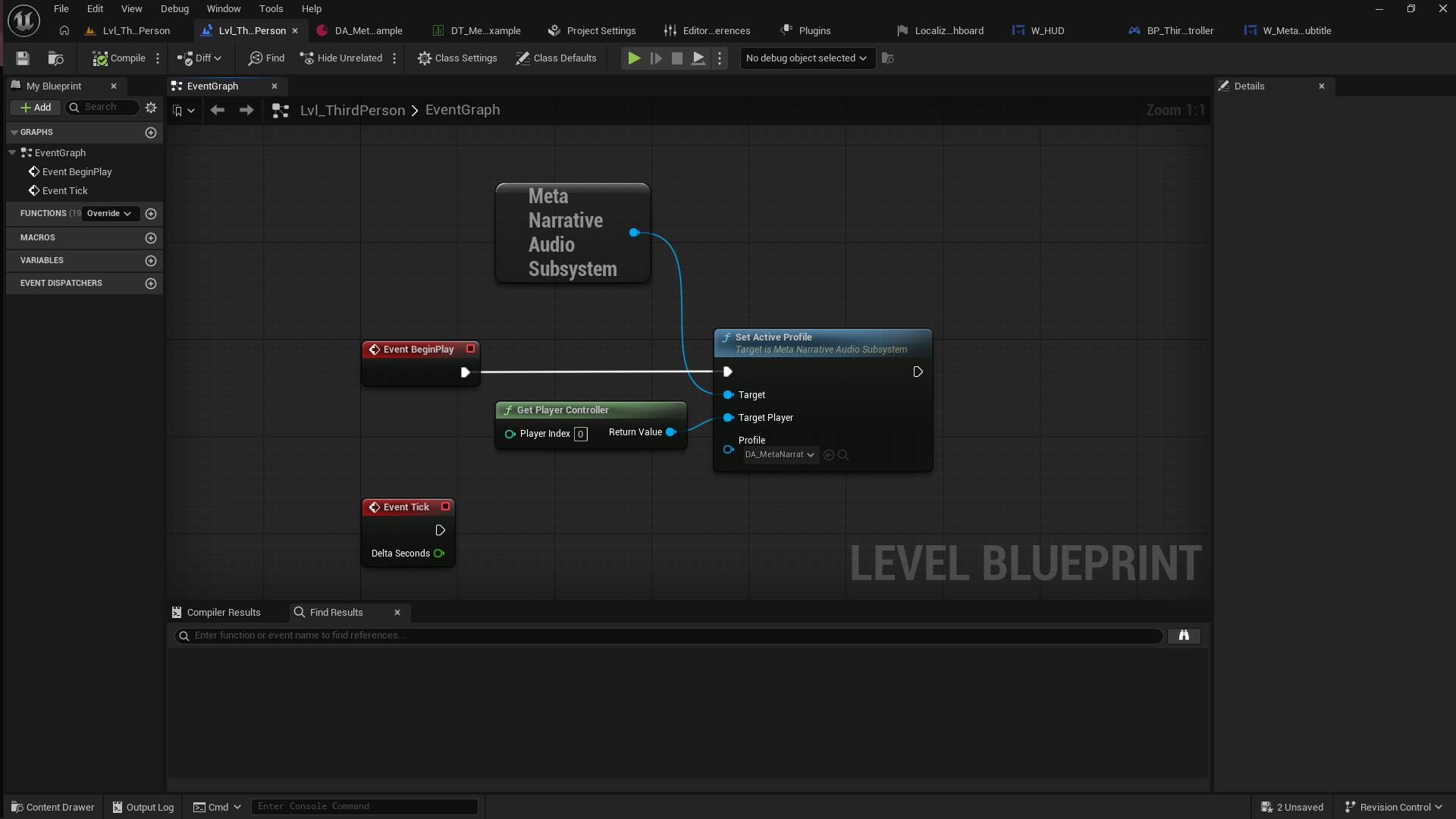
Blueprint Flow (Concept)
- Event BeginPlay
- Get Player Controller (0)
- Get Meta Narrative Audio Subsystem
- Set Active Profile
- Target Player: Player Controller
- Profile: Your
MetaNarrativeProfileasset
This is the step that activates the system for the player.
4) Create and Register the Subtitle Widget (UMG)
The plugin uses a UMG widget interface for subtitles.
You control the widget design and placement.
4.1 Create a Subtitle Widget
Create a widget (example: W_MetaNarrativeSubtitle) and design it as you want.
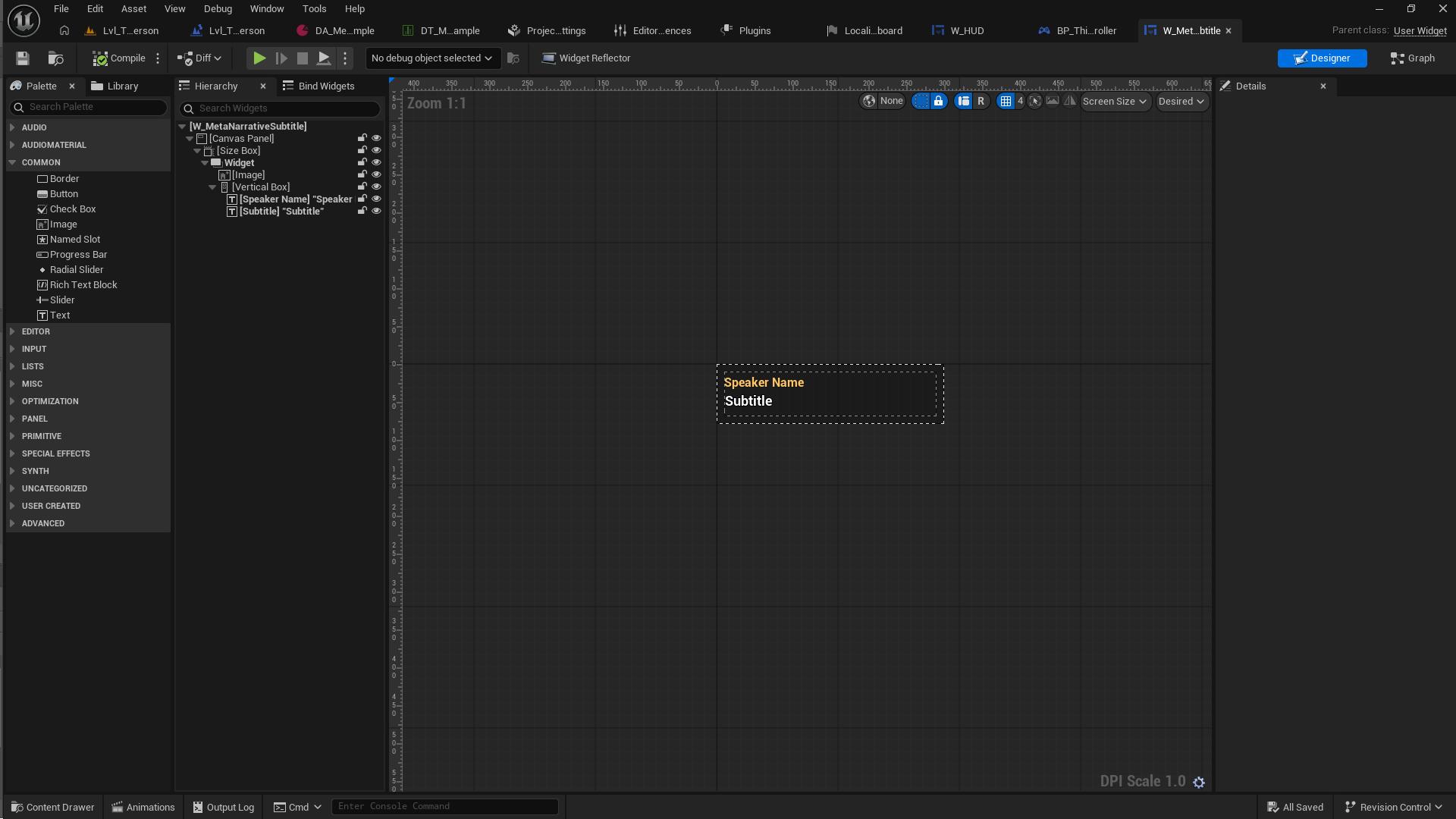
A common layout includes:
- Speaker name text
- Subtitle text
- Background panel / image
4.2 Implement the Interface Events
The widget should implement the display interface and respond to events such as:
- ShowNarrative
- HideNarrative
- (Optional) UpdateNarrativeProgress
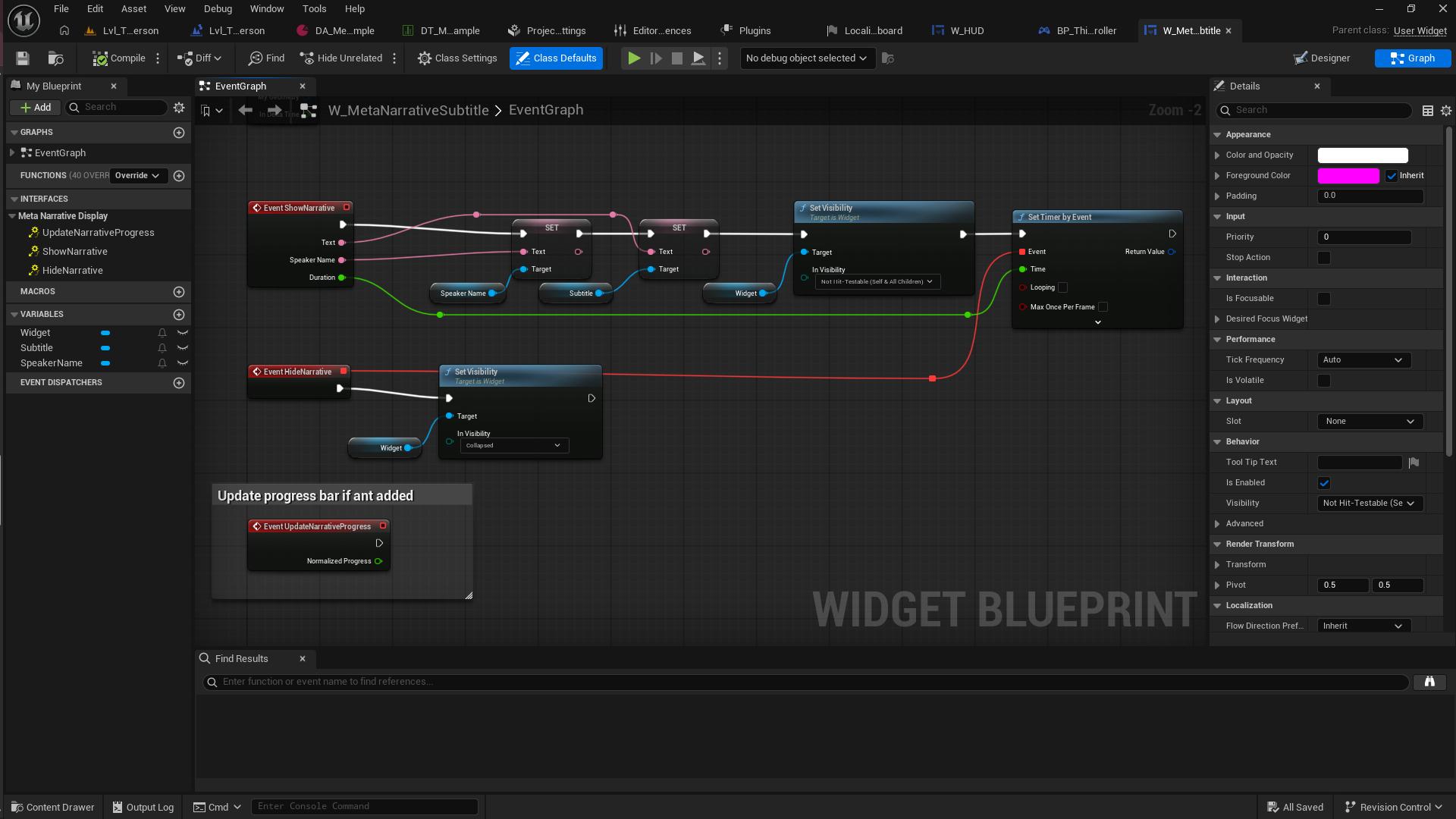
Typical Behavior
- ShowNarrative
- Set speaker name text
- Set subtitle text
- Show widget
- Start a timer for the duration
- HideNarrative
- Hide/collapse widget
- UpdateNarrativeProgress (optional)
- Update a progress bar if used
5) Add Subtitle Widget to HUD and Register It
Create the subtitle widget in your HUD (or Player Controller UI flow), add it to the viewport, then register it with the subsystem.
Example HUD Setup
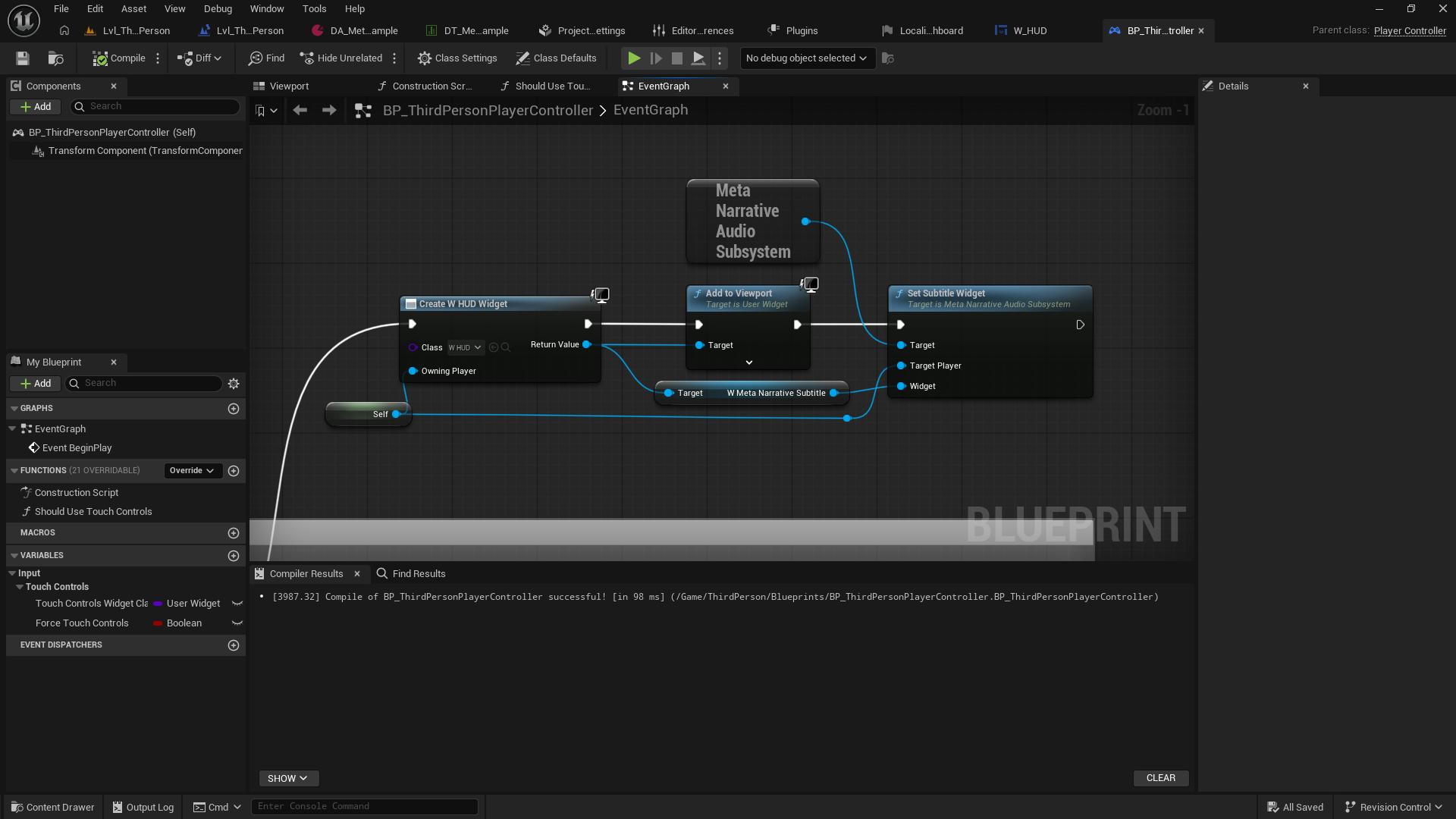
Blueprint Flow (Concept)
- Create your main HUD widget
- Add it to viewport
- Get the subtitle widget reference
- Get Meta Narrative Audio Subsystem
- Call Set Subtitle Widget
- Target Player: Owning player / player controller
- Widget: Subtitle widget instance
This registration step is required so the subsystem can push subtitle events to your UI.
6) Using Trigger Actors (Level Placement)
The plugin includes trigger actors for narrative playback directly from the level.
Available Actors
- MetaNarrativeTrigger
- MetaNarrativeSequenceTrigger
- MetaNarrativeZone
7) MetaNarrativeTrigger (Single Line Trigger)
MetaNarrativeTrigger plays a single narrative line when the player enters the trigger volume.
Example Trigger Setup
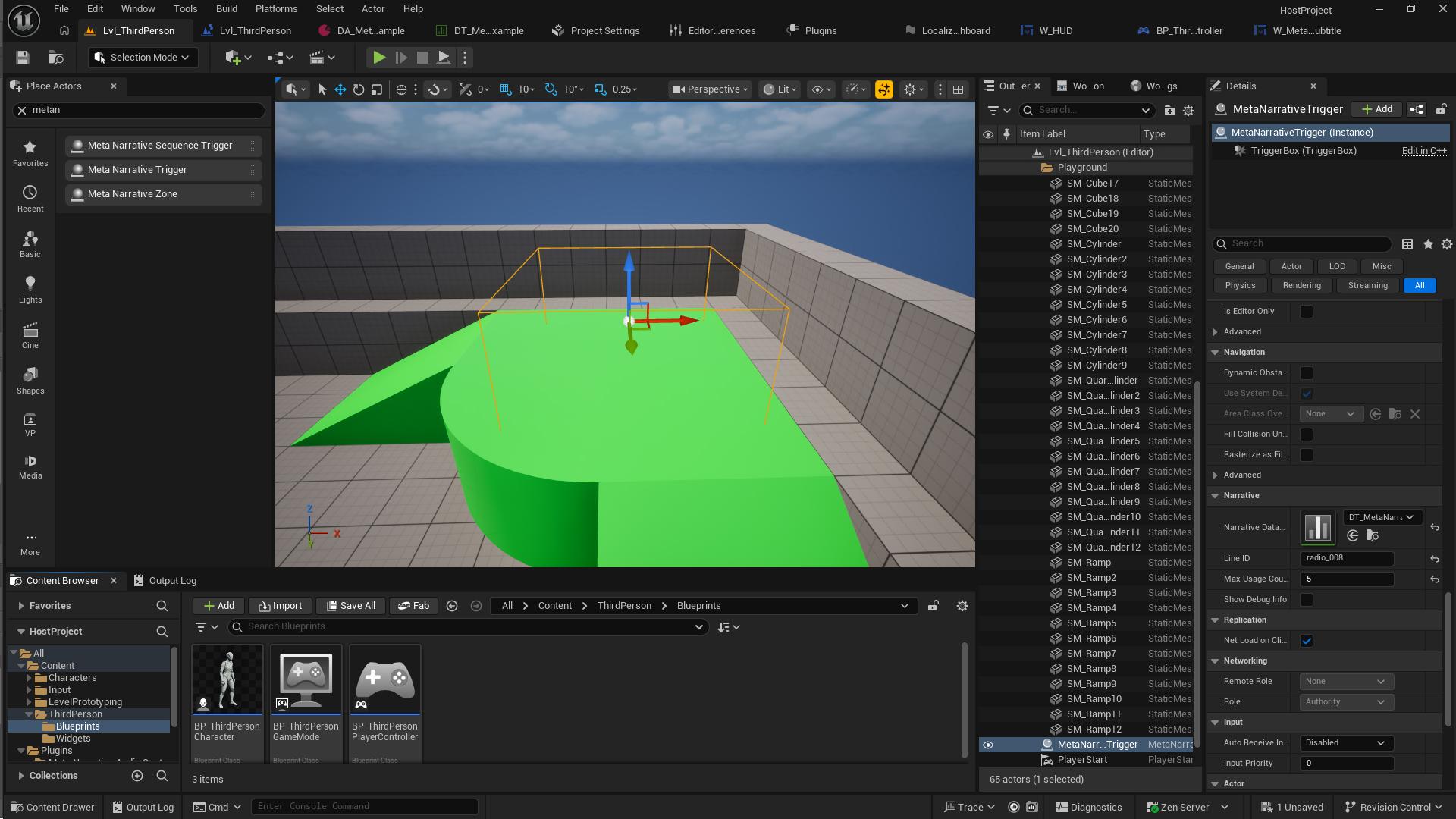
Important Properties
- Narrative DataTable (optional)
- If empty, it uses the active profile’s current DataTable (zone-aware)
- Line ID
- The row name to play (example:
radio_008) - Max Usage Count
- How many times a player can trigger it
- Show Debug Info
- Useful during setup/testing
Use Cases
- Checkpoint VO
- Area intro voice line
- Story event line
- Tutorial prompt voice
8) MetaNarrativeSequenceTrigger (Multiple Lines in Sequence)
MetaNarrativeSequenceTrigger plays multiple lines in order.
Example Sequence Trigger Setup
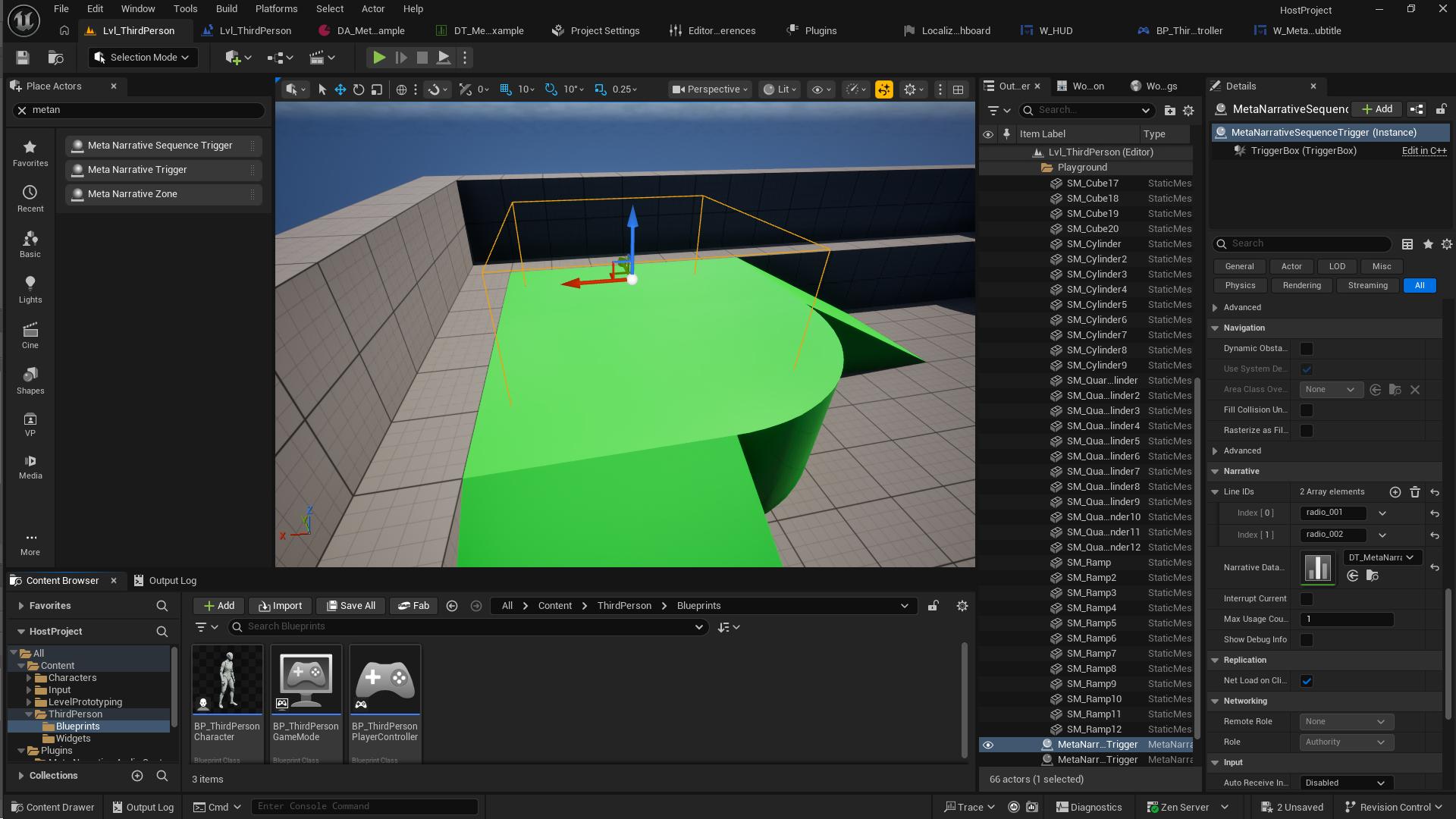
Important Properties
- Line IDs (array)
- Example:
radio_001radio_002
- Narrative DataTable (optional)
- Interrupt Current
- Start sequence immediately by interrupting current playback
- Max Usage Count
- Show Debug Info
Use Cases
- Tutorial steps
- Story checkpoint conversations
- Multi-line radio exchanges
- Boss intro sequences
9) MetaNarrativeZone (Context-Based DataTable Switching)
MetaNarrativeZone lets you automatically switch narrative context by player location.
How It Works
- Player outside all zones → General DataTable
- Player enters a zone → Zone DataTable
- Player enters nested zone → Nested zone DataTable
- Player exits nested zone → returns to previous zone DataTable
Typical Example
Outdoorzone → exploration chatterBuildingzone → indoor chatterCommandRoomnested zone → story-specific dialogue
If you have a dedicated screenshot for zone setup later, add it here.
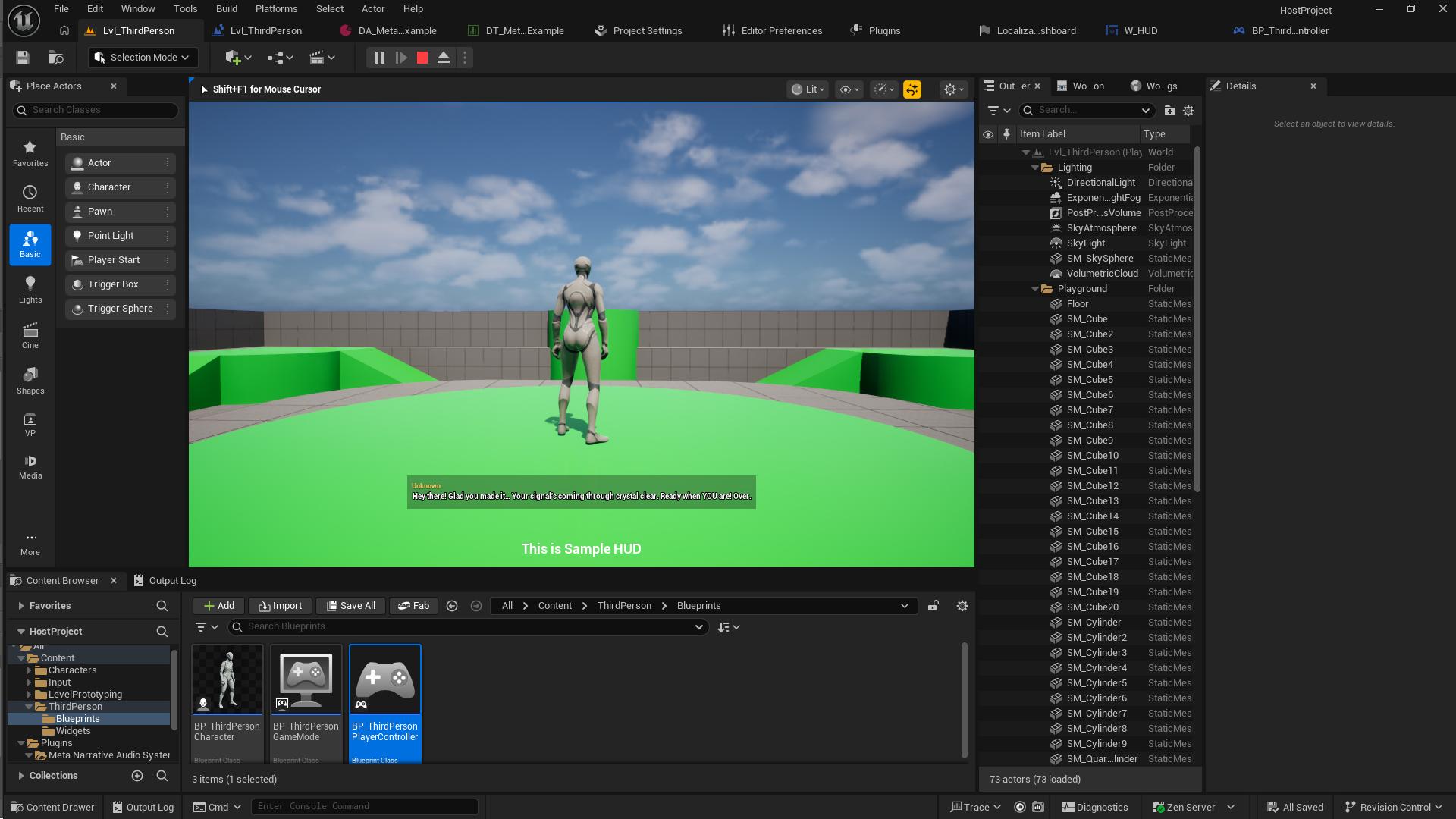
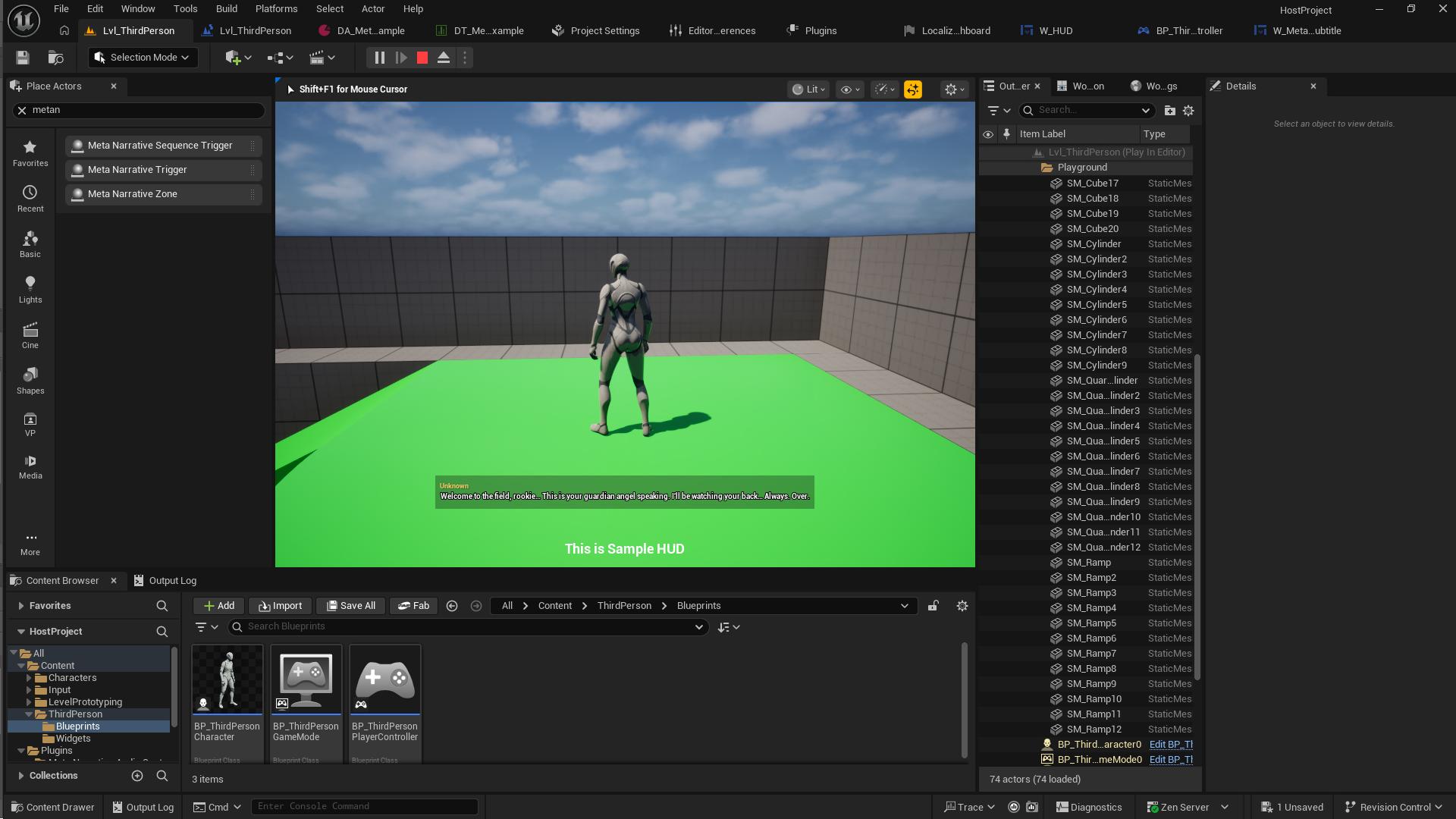
10) Runtime Result (Subtitles on HUD)
When configured correctly, triggers or ambient playback will show subtitles in-game through your registered UMG widget.
Example Runtime Subtitle Result (HUD)
Example Runtime Trigger Playback Result
11) Ambient Playback (Automatic Narrative)
If enabled in the profile, the system can auto-play random lines from the current DataTable.
Ambient Playback Flow
- Wait for Ambient Initial Delay
- Play a random line
- Wait a random time between Min Interval and Max Interval
- Repeat
Best Use Cases
- Radio chatter
- Character thoughts
- Environmental commentary
- Atmospheric story hints
Ambient playback is zone-aware, so entering a zone changes the pool of lines automatically.
12) CSV / Spreadsheet Workflow
Because the plugin is DataTable-based, you can manage narrative content in spreadsheets and import/export CSVs.
Recommended Spreadsheet Columns
RowName(Line ID)AudioSubtitleTextSpeakerNamePriorityDelayBeforePlayOverrideDuration
Workflow
- Write/edit lines in CSV
- Import into Unreal DataTable
- Test with Trigger actors or
PlayNarrativecalls - Iterate quickly without rebuilding complex assets
13) Blueprint Use Cases (Manual Playback)
Besides triggers, you can manually play lines from any Blueprint via the subsystem.
Common Pattern
- Get Player Controller
- Get Meta Narrative Audio Subsystem
- Call one of the playback functions:
- PlayNarrative
- PlayNarrativeFromDataTable
- PlayRandomNarrative
- QueueNarratives
- StopNarrative
Good For
- Door opened events
- Mission progression
- Cutscene transitions
- Boss phase changes
- Dynamic gameplay reactions
14) Troubleshooting
Narratives do not play
Check:
- Did you call Set Active Profile in Level Blueprint?
- Is General Data Table assigned in the profile?
- Does the Line ID exist in the active DataTable?
- Is the row’s Audio field assigned?
Subtitles do not appear
Check:
- Was the subtitle widget created and added to viewport/HUD?
- Did you call Set Subtitle Widget on the subsystem?
- Does the widget implement the interface events?
- Are ShowNarrative / HideNarrative implemented correctly?
Trigger does not fire
Check:
- TriggerBox size and placement
- Collision settings
- Max Usage Count not already reached
- Correct player overlap/collision channel
Zone switching does not happen
Check:
- Zone name matches the profile’s zone mapping
- Zone volume size/collision
- Player overlap events are working
15) Best Practices
Line ID Naming
Use descriptive names:
- radio_command_warning
- checkpoint_bridge_reached
- boss_phase1_intro
Avoid vague IDs:
- line1
- test
- audio3
Organization
Use multiple DataTables by context:
- DT_Exploration
- DT_Combat
- DT_Tutorial
- DT_BossIntro
Use profiles by narrative type:
- DA_Profile_Radio
- DA_Profile_InnerVoice
- DA_Profile_Environment