


MetaMeshmizer
MetaMeshmizer is a batch optimization tool for Unreal Engine that automatically reduces static mesh triangle counts and downsizes textures used in their materials, boosting performance and reducing memory usage with minimal visual impact.
Overview
MetaMeshmizer provides three main batch processing functions:
- Batch Static Mesh LOD Reduction - Reduces triangle/vertex counts for static meshes
- Batch Texture Resize (Mesh-Referenced) - Downsizes textures referenced by static meshes
- Batch Texture Reducer (Standalone) - Reduces all textures in selected folders, independent of static meshes
Installation
- Copy the
MetaMeshmizerplugin folder to your project'sPluginsdirectory - Restart Unreal Engine or regenerate project files
- Enable the plugin in Edit → Plugins → Meta → MetaMeshmizer
Usage
Accessing the Tools
MetaMeshmizer can be accessed in two ways:
Method 1: Main Menu
- Navigate to Tools → Static Mesh Tools in the Unreal Engine menu bar
- Select either:
- Batch Reduce Static Mesh LODs (Selected Folders)
- Batch Halve Referenced Textures
Method 2: Content Browser Context Menu
- Right-click on a folder in the Content Browser
- Select either:
- Meta Static Mesh Batch LODs Reducer
- Meta Static Mesh Batch Texture Reducer
- Meta Batch Texture Reducer (New)

Function 1: Batch Static Mesh LOD Reduction
This function reduces the triangle and vertex counts of static meshes in selected folders, creating optimized LODs (Level of Detail) for better performance.
Parameters
The reduction dialog provides the following options:
Reduce Percent (10-100)
- Type: Float (10.0 - 100.0)
- Default: 50.0
- Description: Reduction percentage - how much to reduce the mesh. A value of 75% means the mesh will be reduced by 75%, leaving 25% of the original triangles/vertices. For example, if a mesh starts with 1000 triangles and you set 75%, it will end with 250 triangles (1000 - 750 = 250). Lower values result in less reduction, higher values result in more aggressive reduction.
Auto Perform (Checkbox)
- Type: Boolean
- Default: false
- Description: When enabled, automatically determines optimal Nanite and LOD Group settings based on the mesh's triangle count and bounds radius. This option OVERRIDES the "Enable Nanite Support" checkbox and "LOD Group" dropdown settings - your manual selections for these will be ignored when Auto Perform is enabled.
Auto Perform Logic:
- Nanite Enablement:
- Enabled if post-reduction triangle count ≥ 50,000
- Enabled if post-reduction triangle count ≥ 10,000 AND bounds radius > 500 units
- Disabled otherwise
- LOD Group Selection:
- SmallProp: Bounds radius ≤ 500 units AND triangles ≤ 10,000
- LargeProp: Bounds radius ≤ 500 units AND triangles > 10,000, OR bounds radius 500-2000 units AND triangles < 100,000
- LevelArchitecture: Bounds radius > 2000 units OR bounds radius 500-2000 units AND triangles ≥ 100,000
Enable Nanite Support (Checkbox)
- Type: Boolean
- Default: true
- Description: Enables Nanite virtualized geometry support for the mesh. Nanite is ideal for high-poly meshes (10,000+ triangles) and provides automatic LOD management. When enabled, the LOD Group setting is ignored (Nanite doesn't use traditional LOD groups). Note: This setting is overridden when "Auto Perform" is enabled.
Nanite Keep Triangle % (0-100)
- Type: Float (0.0 - 100.0)
- Default: 50.0
- Description: Keep percentage - how many triangles to keep (NOT reduction percentage). This is different from "Reduce Percent" above. A value of 50% means 50% of triangles will be kept for Nanite's fallback representation. This affects the simplified mesh used when Nanite cannot render the full detail. Lower values reduce memory but may impact quality at extreme distances.
LOD Group (Dropdown)
- Type: String (Enumeration)
- Options: None, SmallProp, LargeProp, LevelArchitecture
- Default: None
- Description: Sets the LOD Group for the mesh, which determines automatic LOD generation behavior:
- None: Custom manual LOD setup with 6 progressive LODs (LOD0 at specified reduction %, each subsequent LOD at 50% of previous)
- SmallProp: Optimized for small objects (props, decorations)
- LargeProp: Optimized for large objects (vehicles, furniture)
- LevelArchitecture: Optimized for architectural elements (buildings, structures)
Notes:
- LOD Group is ignored when Nanite is enabled.
- This setting is overridden when "Auto Perform" is enabled.
Support Ray Tracing (Checkbox)
- Type: Boolean
- Default: false
- Description: Enables ray tracing support for the mesh. This allows the mesh to participate in ray-traced lighting and reflections, but increases build time and memory usage.
Distance Field Scale (0.25-1.0)
- Type: Float (0.25 - 1.0)
- Default: 0.5
- Description: Scale factor for distance field resolution. Distance fields are used for soft shadows and ambient occlusion. Lower values reduce memory usage but may impact shadow quality. This setting is applied to all LODs.
Allow CPU Access (Checkbox)
- Type: Boolean
- Default: false
- Description: Allows the mesh data to be accessed from CPU code. This is required for certain gameplay features (e.g., procedural mesh generation, physics queries) but increases memory usage.
Settings Dialog

How It Works
- Select one or more folders in the Content Browser
- Launch the tool from the menu or context menu
- Configure reduction parameters in the settings dialog
- Click OK to start processing
- A progress window displays the operation status
- Meshes are processed sequentially with a progress bar
LOD Generation Behavior
When Nanite is Enabled:
- Only LOD0 is created with the specified reduction percentage
- Nanite handles automatic detail management
- LOD Group is set to None (not applicable)
When Nanite is Disabled and LOD Group is "None":
- Creates 6 LODs with progressive reduction:
- LOD0: Reduced by specified percentage (e.g., 50% reduction = 50% of original remains)
- LOD1: 50% of LOD0 (further reduction from LOD0)
- LOD2: 50% of LOD1 (further reduction from LOD1)
- LOD3: 50% of LOD2 (further reduction from LOD2)
- LOD4: 50% of LOD3 (further reduction from LOD3)
- LOD5: 50% of LOD4 (further reduction from LOD4)
When LOD Group is Set (SmallProp/LargeProp/LevelArchitecture):
- Only LOD0 is modified with the specified reduction percentage
- The LOD Group system automatically manages the LOD chain
- Additional LODs are generated based on the group's settings
Note: When "Auto Perform" is enabled, both "Enable Nanite Support" and "LOD Group" settings are overridden by the automatic logic.
Function 2: Batch Texture Resize (Mesh-Referenced)
This function finds all textures referenced by static meshes in selected folders and reduces their resolution, saving memory and improving performance.
Parameters
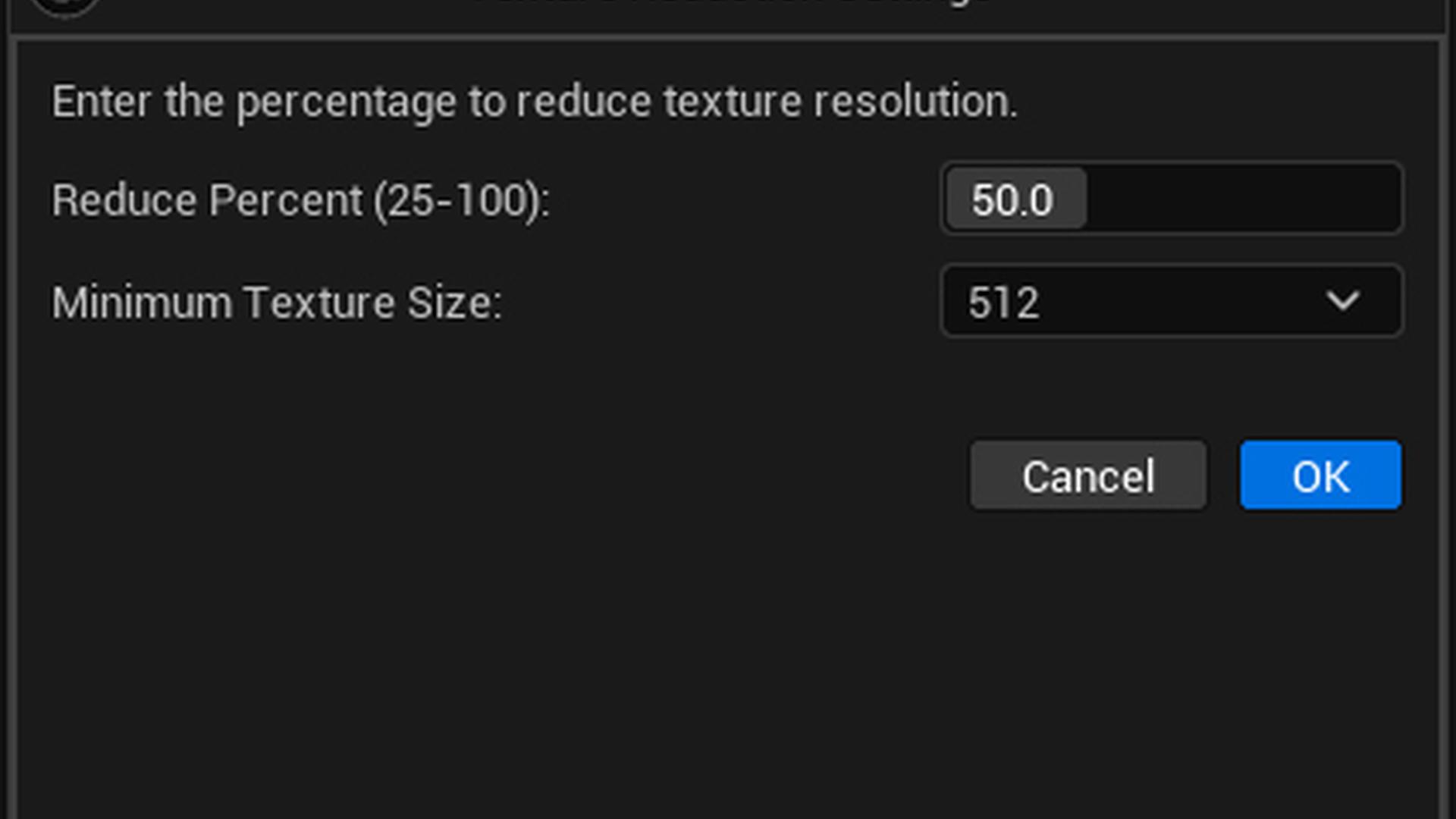
The texture reduction dialog provides the following options:
Reduce Percent (25-100)
- Type: Float (25.0 - 100.0)
- Default: 50.0
- Description: Reduction percentage - how much to reduce the texture resolution. A value of 75% means the texture will be reduced by 75%, leaving 25% of the original resolution. For example, if a texture starts at 2048×2048 and you set 75%, it will end at 512×512 (2048 × 0.25 = 512). The value is clamped between 25% and 100% to ensure reasonable quality.
Example:
- Original texture: 2048×2048 (4,194,304 pixels)
- 50% reduction: 1024×1024 (1,048,576 pixels) - texture reduced by 50%, leaving 50% resolution
- 75% reduction: 512×512 (262,144 pixels) - texture reduced by 75%, leaving 25% resolution
Minimum Texture Size (Dropdown)
- Type: Integer
- Options: 512, 1024, 2048, 4096
- Default: 512
- Description: Sets the minimum size threshold for texture reduction. Only textures where BOTH width AND height are greater than this value will be reduced. This prevents small textures from being reduced unnecessarily.
Examples with 512 minimum:
- 512×1024 → NOT reduced (width is 512, not greater than 512)
- 513×513 → WILL be reduced (both dimensions > 512)
- 1024×1024 → WILL be reduced (both dimensions > 512)
- 1024×2048 → WILL be reduced (both dimensions > 512)
- 256×256 → NOT reduced (both dimensions ≤ 512)
Examples with 1024 minimum:
- 1024×2048 → NOT reduced (width is 1024, not greater than 1024)
- 1025×1025 → WILL be reduced (both dimensions > 1024)
- 2048×2048 → WILL be reduced (both dimensions > 1024)
Settings Dialog
How It Works
- Select one or more folders in the Content Browser
- Launch the tool from the menu or context menu
- Enter the reduction percentage (25-100)
- Click OK to start processing
- The tool:
- Scans all static meshes in selected folders
- Collects all textures referenced by mesh materials
- Removes duplicates (same texture referenced multiple times)
- Resizes each unique texture to the specified percentage - A progress window displays the operation status
Texture Collection
The tool automatically finds textures from:
- Material instances (texture parameters)
- Material interfaces (used textures)
- All material slots in static meshes
Supported Texture Formats
The tool supports all standard Unreal Engine texture formats and preserves:
- Original format (RGBA, RGB, etc.)
- Gamma space (sRGB, Linear)
- Texture compression settings
Function 3: Batch Texture Reducer (Standalone)
This function directly reduces all texture assets in selected folders and their subfolders, independent of static meshes. Unlike Function 2, this tool operates on all Texture2D assets found in the selected paths, regardless of whether they are referenced by any meshes.
Key Differences from Function 2
| Feature | Function 2 (Mesh-Referenced) | Function 3 (Standalone) |
|---|---|---|
| Texture Discovery | Only textures referenced by static mesh materials | All Texture2D assets in folders |
| Dependency | Requires static meshes to exist | Completely independent |
| Use Case | Optimize textures used by specific meshes | Batch reduce all textures in a folder structure |
| Scope | Limited to mesh materials | Includes all textures (UI, VFX, unused, etc.) |
Parameters
The texture reduction dialog provides the following options:
Reduce Percent (25-100)
- Type: Float (25.0 - 100.0)
- Default: 50.0
- Description: Reduction percentage - how much to reduce the texture resolution. A value of 75% means the texture will be reduced by 75%, leaving 25% of the original resolution. For example, if a texture starts at 2048×2048 and you set 75%, it will end at 512×512 (2048 × 0.25 = 512). The value is clamped between 25% and 100% to ensure reasonable quality.
Example:
- Original texture: 4096×4096 (16,777,216 pixels)
- 50% reduction: 2048×2048 (4,194,304 pixels) - texture reduced by 50%, leaving 50% resolution
- 75% reduction: 1024×1024 (1,048,576 pixels) - texture reduced by 75%, leaving 25% resolution
Minimum Texture Size (Dropdown)
- Type: Integer
- Options: 512, 1024, 2048, 4096
- Default: 512
- Description: Sets the minimum size threshold for texture reduction. Only textures where BOTH width AND height are greater than this value will be reduced. This prevents small textures from being reduced unnecessarily.
Examples with 512 minimum:
- 512×1024 → NOT reduced (width is 512, not greater than 512)
- 513×513 → WILL be reduced (both dimensions > 512)
- 1024×1024 → WILL be reduced (both dimensions > 512)
- 1024×2048 → WILL be reduced (both dimensions > 512)
- 256×256 → NOT reduced (both dimensions ≤ 512)
Examples with 2048 minimum:
- 2048×4096 → NOT reduced (width is 2048, not greater than 2048)
- 2049×2049 → WILL be reduced (both dimensions > 2048)
- 4096×4096 → WILL be reduced (both dimensions > 2048)
How It Works
- Right-click on a folder in the Content Browser
- Select Meta Batch Texture Reducer from the context menu
- Enter the reduction percentage (25-100)
- Click OK to start processing
- The tool:
- Scans all Texture2D assets in selected folders and subfolders (recursive)
- Processes each texture individually
- Resizes each texture to the specified percentage - A progress window displays the operation status
Use Cases
- Bulk Optimization: Reduce all textures in a specific asset folder before packaging
- Memory Budget: Quickly downsize textures for low-end platforms or mobile builds
- Asset Library Processing: Batch process imported texture libraries
- Prototyping: Reduce texture sizes for faster iteration during development
- VFX/UI Textures: Optimize textures that aren't referenced by static meshes
Supported Texture Formats
The tool supports all standard Unreal Engine texture formats and preserves:
- Original format (RGBA, RGB, etc.)
- Gamma space (sRGB, Linear)
- Texture compression settings
Progress Window
All functions display a progress window showing:
- Selected folders
- Current operation status
- Number of assets found
- Processing progress for each asset
- Completion status
Best Practices
Static Mesh Reduction
- Start Conservative: Begin with 30-50% reduction (leaving 70-50% of original) and adjust based on visual quality. Remember: higher reduction percentage = more aggressive reduction = fewer triangles remain.
- Use Auto Perform: Enable Auto Perform for automatic optimization based on mesh characteristics. Note that this will override your manual Nanite and LOD Group settings.
- Nanite for High-Poly: Enable Nanite for meshes with 10,000+ triangles (or let Auto Perform decide)
- LOD Groups: Use appropriate LOD Groups for consistent optimization across similar assets (unless Auto Perform is enabled)
- Test in Context: Always test reduced meshes in your actual game/level to verify visual quality
Texture Resizing (Mesh-Referenced)
- Check Quality: Preview textures after resizing to ensure acceptable quality
- Consider Usage: More important textures (hero assets) may need less reduction (lower reduction percentage)
- Understand Reduction: Remember that 75% reduction means only 25% of original resolution remains (e.g., 2048×2048 becomes 512×512)
- Batch Process: Process textures in batches by folder to maintain organization
- Backup First: Consider backing up textures before batch resizing
Texture Reducer (Standalone)
- Use with Caution: This tool processes all textures in selected folders, including UI, VFX, and other non-mesh textures
- Folder Organization: Organize textures by type/importance in separate folders for selective processing
- Test Thoroughly: Always preview textures after reduction, especially UI and VFX textures which may be more sensitive to quality loss
- Recursive Processing: Remember that all subfolders are included - organize your folder structure accordingly
- Backup Critical Assets: Always backup important texture assets before batch processing
- Consider Asset Type: Some textures (normal maps, UI elements, text) may require higher quality than others
Technical Details
Requirements
- Unreal Engine 5.7 or later
- Editor build (not available in packaged builds)
- MeshReductionInterface module (included with Unreal Engine)
Dependencies
- Core
- CoreUObject
- Engine
- UnrealEd
- EditorSubsystem
- AssetRegistry
- ContentBrowser
- ToolMenus
- MeshUtilities
- MeshReductionInterface
Limitations
- Mesh reduction only works in editor builds
- Texture resizing modifies source textures (consider backups)
- Large batches may take significant time to process
- Some meshes may not reduce well if they're already optimized
- Standalone texture reducer processes all Texture2D assets recursively
Troubleshooting
No Meshes Found
- Ensure folders contain Static Mesh assets (.uasset files)
- Check that folders are properly selected in Content Browser
- Verify asset registry has indexed the selected paths
No Textures Found (Standalone)
- Ensure folders contain Texture2D assets (.uasset files)
- Check that folders are properly selected in Content Browser
- Verify asset registry has indexed the selected paths
- Check that textures are actually Texture2D type (not TextureCube, etc.)
Reduction Not Applied
- Check that meshes are not read-only
- Ensure you have write permissions for the asset files
- Verify the mesh has valid geometry (not empty or corrupted)
Texture Resize Fails
- Ensure textures are not compressed in an unsupported format
- Check that textures have valid source data
- Verify texture is not locked or in use by another process
- Ensure textures are not read-only or checked out by source control